



The Microsoft Windows Insider program allows consumers and professionals to preview the upcoming features of Windows 10 before they are shipped to consumers.
To join the program and install the preview builds, you normally need a Microsoft account and a PC running Windows 10. Unfortunately, you must link your Microsoft account and Windows 10 device to download and install any Insider preview builds.
An independent developer has now created a command-line script called ‘Offline Insider Enroll’ that allows Windows 10 PCs to enroll in the Insider program without a Microsoft account.
On Github, the developer explained that this script takes advantage of ‘TestFlags’ registry value to enroll a user into the program:
If this value is set to ‘0x20’, all access to online Windows Insider services gets disabled. Because of this, we can set our own Windows Insider Preview configuration without being overridden by the contact to the service. Since Windows Update does not check if machine is actually enrolled to the program, you will get offered Insider Preview builds by just setting correct values in the registry.
The process is fairly easy to set up and takes place entirely in the Command Prompt as described below.
Install Windows 10 preview builds without a Microsoft account
- Download the ‘Offline Insider Enroll’ script from the GitHub repository and save it anywhere in the local system.
- Extract the archive to view the script.
- To run the script, right-click on the file and select ‘Run as administrator’.
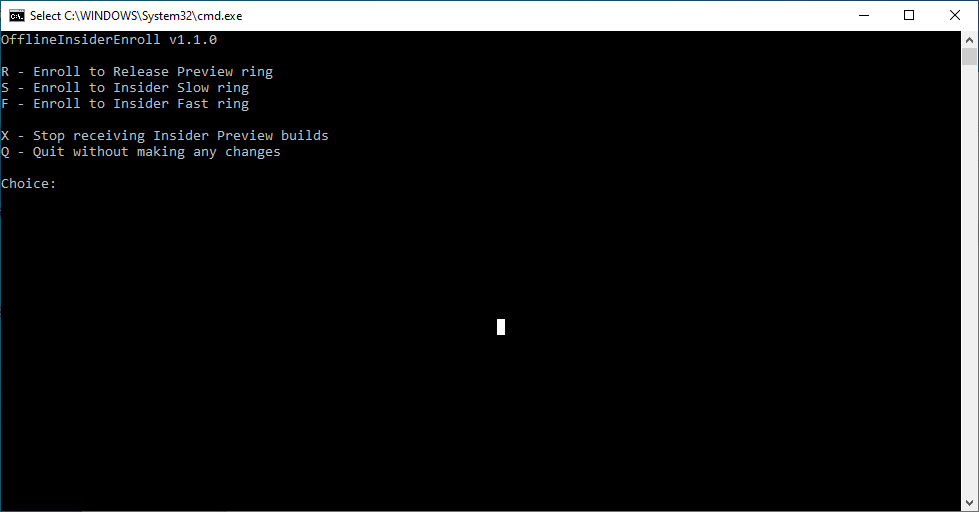
- After the script is executed, it will ask you to select the Ring to join. More information about the various Rings can be found here.

- After selecting a Ring to join, you will be prompted to reboot your computer, which you should do.
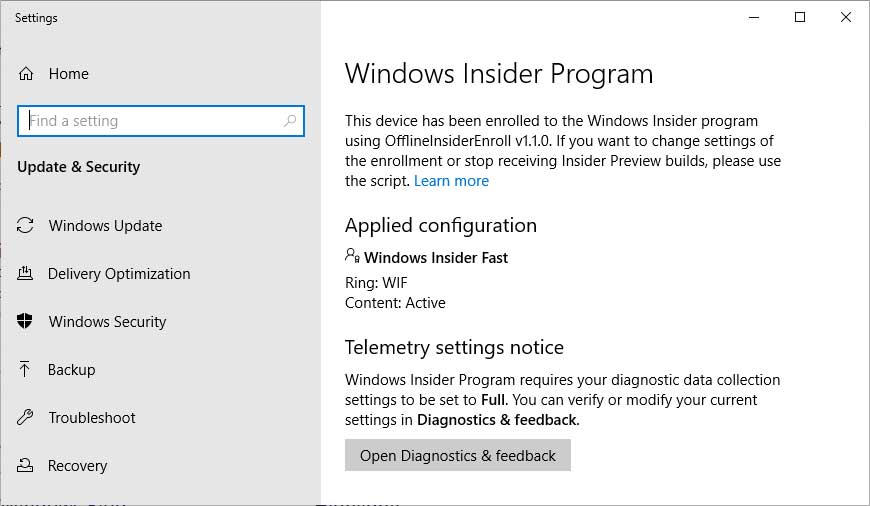
After rebooting the system, you can go into the Windows Insider Program control panel and see that you have now joined the selected ring.
To stop receiving Windows Insider builds, you can run the script again, but this time select X and then reboot the computer.

Follow Canada News Media
Get the day's top Canadian stories and our two daily 60-second news videos wherever you scroll.
X Threads Facebook Instagram LinkedIn TikTok YouTube Pinterest Reddit Substack Flipboard Newsletter RSS