





Nevertheless, sticking with Windows 7 beyond its support date is not really advised for the typical home user. The lack of monthly security patches will leave Windows 7 vulnerable to exploits, and the longer you put off upgrading, the more of a security liability the OS will become.
Fortunately, making the jump to Windows 10 is relatively easy, and potentially free.
You Can Still Upgrade To Windows 10 For Free
When Windows 10 first debuted to the public in July 2015, Microsoft made upgrading from Windows 7 and Windows 8/8.1 free for the first year. Technically, Microsoft still allowed free upgrades beyond that period for customers who use assistive technologies, though the free ride to Windows 10 was supposed to end in December 2017.
“WDG didn’t care pretty much at all because Terry Meyerson at the time cared more about his upgrade stats than license revenue as Windows isn’t Microsoft’s cash cow anymore. It’s the same stance back in the day where Microsoft would allow Windows Updates on pirated copies of Windows 7 as the bigger picture was to thwart security threats based from those copies,” the presumed former Microsoft employee explained.
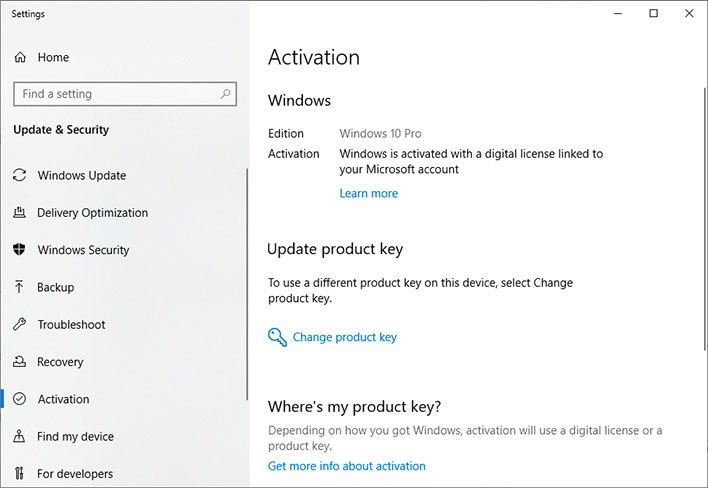
If you have a valid Windows 7 or Windows 8/8.1 license, you can upgrade to Windows 10 by following these steps…
- Go to the Download Windows 10 page and click the Download tool now button.
- Once the download finishes, run the Media Creation Tool.
- If the tool is already on the PC you’re wanting to upgrade, choose the Upgrade this PC now option and enjoy your free upgrade to Windows 10. If not, go to the next step.
- If the tool is not on the PC you’re wanting to upgrade, choose the Create installation media for another PC option.
- Follow the prompts and then choose whether you want to put the installation files on a USB flash drive or ISO file. Transfer whichever option you chose to the PC you want to upgrade.
Users report they are not being asked for a product key, assuming this is performed on a valid Windows 7 or Windows 8/8.1 PC. Once the upgrade is complete, you can head to Settings > Update & Security > Activation to confirm it worked without a hitch.
Alternatively, if you already installed Windows 10 and still need to validate it, as long as you have access to your old Windows 7 or 8 key, you can just head to the same section and select Change product key, then plug in your old key.
Follow Canada News Media
Get the day's top Canadian stories and our two daily 60-second news videos wherever you scroll.
X Threads Facebook Instagram LinkedIn TikTok YouTube Pinterest Reddit Substack Flipboard Newsletter RSS